Click Sap
A downloadable app for Android
Click Sap
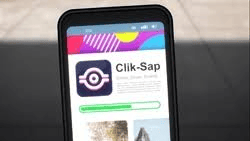
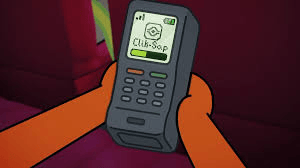
Streamline your daily routine with Click SAP, the ultimate productivity shortcut. Designed for users who value speed and simplicity, Click SAP brings your most essential phone functions into one clean, intuitive dashboard. No more digging through menus—just one click and you’re done!
Whether you need to capture a moment, light up the dark, or get a quick boost of wisdom, Click SAP is the Swiss Army knife for your smartphone.
Key Features:
- 📸 Instant Capture: Open your camera and snap high-quality photos in a heartbeat.
- 🔦 Quick Flashlight: Brighten your surroundings instantly with a dedicated power button.
- ✉️ Smart Messaging: Send pre-set or custom messages to your favorite contacts at lightning speed.
- 💡 Daily Wisdom: Get a fresh dose of inspiration with a dedicated "Advice" button, offering tips on health, productivity, and life.
Why Click SAP?
- Minimalist Interface: Large, easy-to-tap buttons designed for maximum efficiency.
- Performance Driven: Lightweight and lightning-fast, it won’t slow down your device.
- All-in-One Utility: Consolidate your most-used tools into a single, organized hub.
Simplify your digital life. Download Click SAP today and get things done with just a single click!
Download
Install instructions
Thank you for choosing Click SAP! Follow these simple steps to get the app running on your Android device:
1. Download the File
Click the download button above to save the ClickSAP.apk file to your device.
2. Enable "Unknown Sources"
Since you are installing this outside of the official Play Store, your phone may block the installation for security.
- Go to your phone Settings.
- Navigate to Security or Privacy.
- Toggle on "Install Unknown Apps" (or "Allow from this source" if prompted by your browser).
3. Install the App
- Open your File Manager or Downloads folder.
- Tap on the
ClickSAP.apkfile. - Select Install and wait for the process to finish.
4. Grant Permissions
To ensure all buttons work correctly, the app will ask for the following permissions when first opened:
- Camera: Required for the "Capture Photo" and "Flashlight" features.
- SMS/Contacts: Required for the "Send Message" feature.
5. Launch & Click!
Find the Click SAP icon on your home screen or app drawer and start managing your tasks with a single click.

Leave a comment
Log in with itch.io to leave a comment.